> For the complete documentation index, see [llms.txt](https://docs.20lab.app/llms.txt). Markdown versions of documentation pages are available by appending `.md` to page URLs; this page is available as [Markdown](https://docs.20lab.app/verification-on-block-explorer/verifying-source-code/manual-verification.md).
# Manual verification
This guide shows you how to manually verify your ERC-20 token generated on 20lab.app on any block explorer.
This verification method works on all EVM blockchains supported by [20lab](https://20lab.app/), but only with the "Verify with your label" option. If you're deploying your token on a blockchain that doesn't support automated verification, or you simply prefer to submit a verification request yourself, you can use this manual verification option.
### Step 1: Prepare Your JSON File
When you click on 'Verify with your label' in your dashboard, a pop-up will appear.
#### Create Your Custom Label
Enter your custom label in the large text box. This label will appear at the top of your verified token.
{% hint style="warning" %}
**Important:** The label is permanent - you can't change it later, so choose carefully!
{% endhint %}
#### Download the JSON File
Once you have entered your desired label, click 'Download JSON file'. This JSON file contains all the necessary information about your token, such as source code, libraries, and other details. You will need to upload this file to the Block Explorer in the next steps.
### Step 2: Go to the Block Explorer
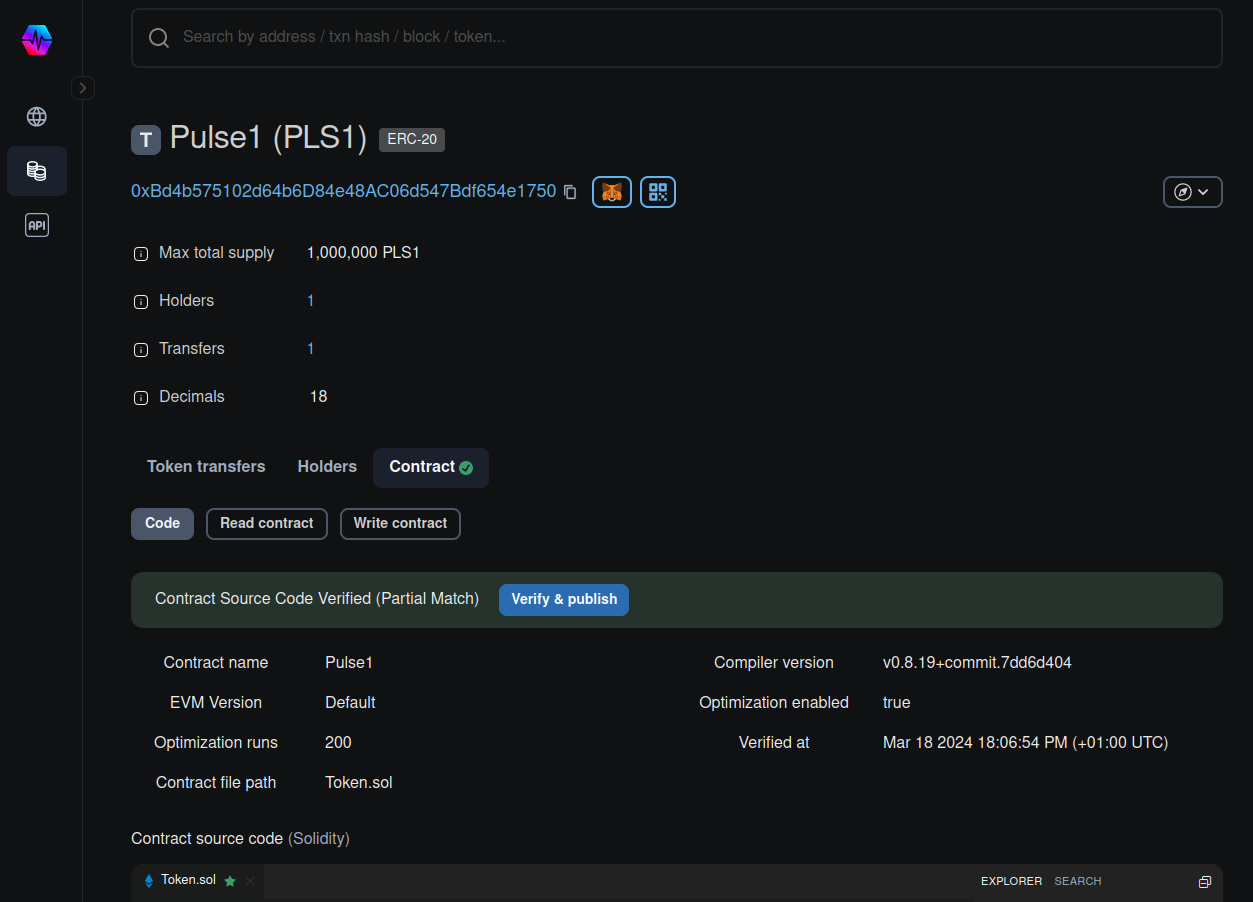
Now you can navigate to the Block Explorer page of your token. You should see that you can verify your contract in the 'Contract' tab (for example, on PulseChain you'll see a 'Verify & Publish' button).
### Step 3: Fill Out the Verification Form
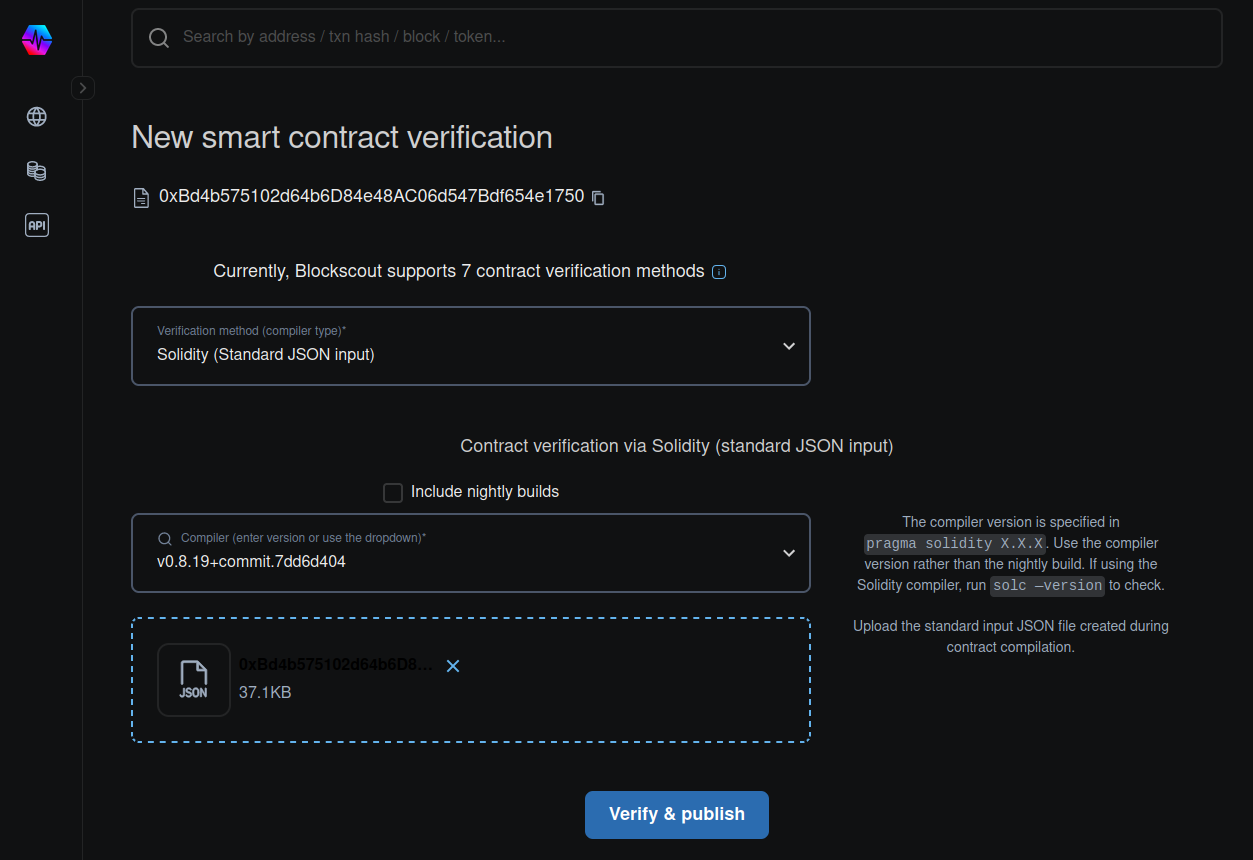
Once you click on the verification button, you will see the verification form. Fill it in with the same details as you see on the 20lab verification pop-up (some of them may vary per token) and upload the JSON file you just downloaded.
### Step 4: Complete the Verification
Click 'Verify & Publish' to submit the file and complete the verification process. If it takes too long to load, try refreshing the page to see if your token has been verified in the meantime.
### Success!
That's it - your token has been successfully verified! You can now see your verified token with your custom label on the block explorer.