> For the complete documentation index, see [llms.txt](https://docs.20lab.app/llms.txt). Markdown versions of documentation pages are available by appending `.md` to page URLs; this page is available as [Markdown](https://docs.20lab.app/verification-on-block-explorer/verifying-ownership.md).
# Verifying ownership
This guide shows you how to verify ownership of your ERC-20 token generated on 20lab.app on any block explorer.
To add a logo to your token or add your project details to the block explorer, you will need to verify your token ownership. If you have already verified your source code, this is a great next step to attract more people to your project. When people see your token on the Block Explorer, they will know where to go for more information about your project.
### Getting Started
To begin the process, follow these steps:
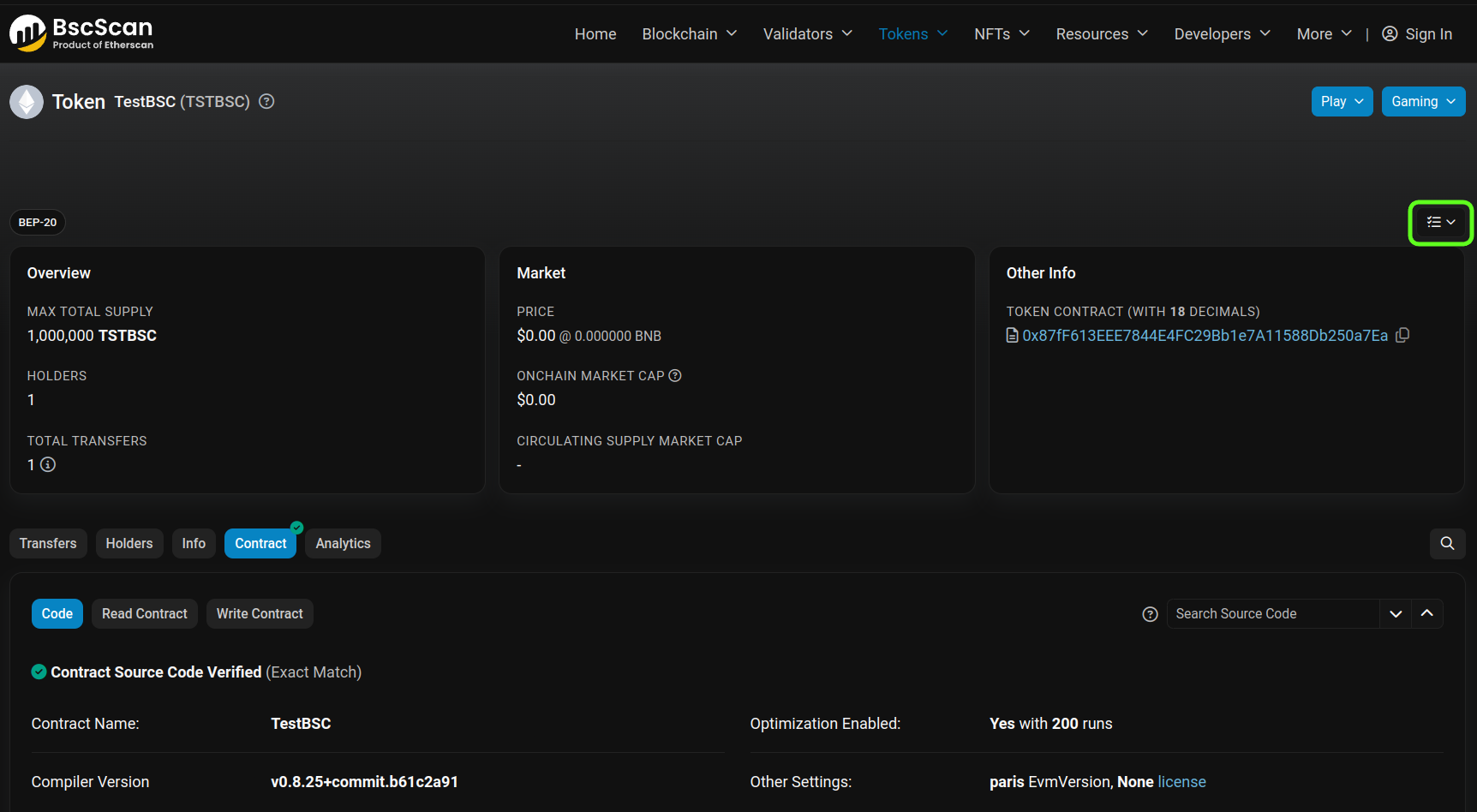
#### Step 1: Go to Your Token Page
Navigate to your token page in the Block Explorer.
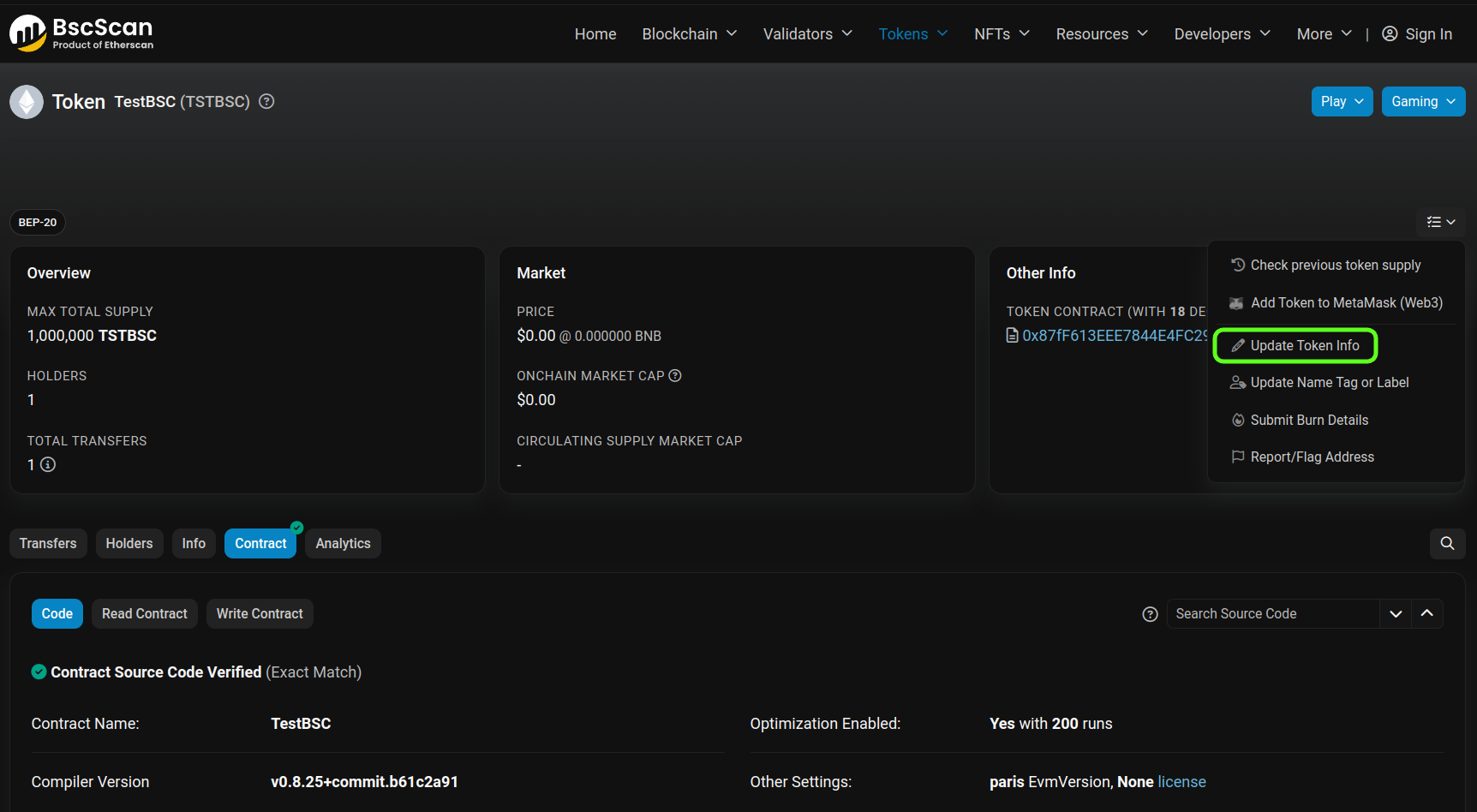
#### Step 2: Access the Token Menu
Click on the token menu on the right side of the screen and select "Update Token Info".
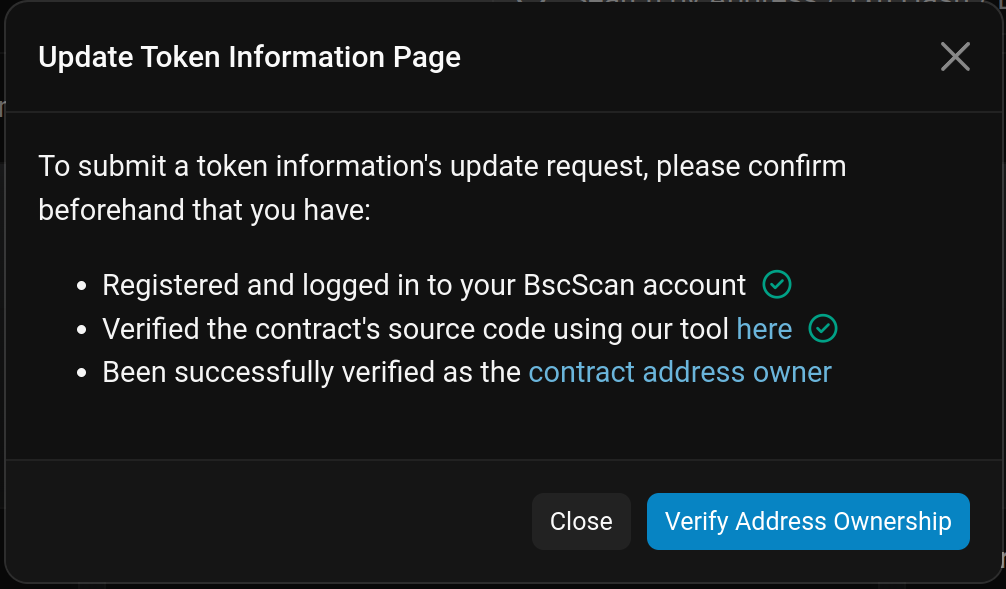
#### Step 3: Review the Requirements
You will see a pop-up with information about:
* Creating an account on the block explorer page
* Verifying the source code of your token
If you haven't verified your source code yet, please read our guide on verifying source code with [20lab](https://20lab.app/) first:
{% content-ref url="/pages/GTyU8VPvbePZyXp8XF3S" %}
[Verifying source code](/verification-on-block-explorer/verifying-source-code.md)
{% endcontent-ref %}
### Verification Mode
After clicking "Verify Address Ownership", there are 2 possible scenarios, depending on whether the block explorer supports automatic signature verification for tokens created by smart contracts:
#### Option 1: Automatic Signature Verification
If the Block Explorer supports automatic mode, follow the Automatic Signature Verification instructions:
{% content-ref url="/pages/J9OyWqnOMfwmKWkavDQy" %}
[Automatic Signature Verification](/verification-on-block-explorer/verifying-ownership/automatic-signature-verification.md)
{% endcontent-ref %}
#### Option 2: Manual Signature Verification
If the Block Explorer does not support automatic mode and you see the "Proceed to Contact Us" button, follow the Manual Signature Verification instructions:
{% content-ref url="/pages/fjoDFjMee0yvS9yOfnRS" %}
[Manual Signature Verification](/verification-on-block-explorer/verifying-ownership/manual-signature-verification.md)
{% endcontent-ref %}